









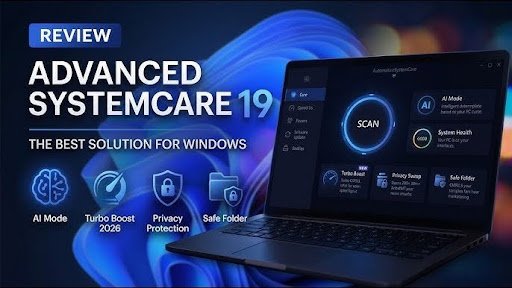
For years, I had the same problem with almost every Windows computer I owned: it started fast, responsive, and smooth, but after a few months, everything slowed down. Boot times got longer, apps took forever to launch, and random lag became part of my daily routine. I tried manual maintenance, uninstalling programs, deleting junk files, and even reinstalling Windows more than once. Eventually, I decided to test Advanced SystemCare for a full six months to see if a dedicated Windows cleaner could actually make a long-term difference.
I went into the experience skeptical. I’ve used plenty of so-called optimization tools before, and many of them either did very little or overloaded the system with unnecessary features. Some even made things worse by constantly running background processes. But after six months of daily use, I can honestly say my experience with Advanced SystemCare surprised me in several ways.
My PC Setup Before Using Advanced SystemCare
The computer I used for this test wasn’t brand new. It was a mid-range Windows laptop I mainly used for work, browsing, video streaming, and occasional gaming. By the time I installed the software, the system already had the typical symptoms of long-term Windows use:
- Slow startup times
- Browser lag with multiple tabs open
- Random freezes during multitasking
- Temporary files piling up constantly
- Too many startup programs running in the background
I didn’t want miracles. I simply wanted my PC to stay consistently usable without needing a complete reset every few months. That’s why I started using Advanced SystemCare as my main PC cleaner and optimization tool.
First Impressions
The installation process was quick and straightforward. The interface looked modern without feeling cluttered, which I appreciated immediately. Many optimization tools try to impress users with flashy graphics and complicated menus, but this one felt relatively easy to navigate.
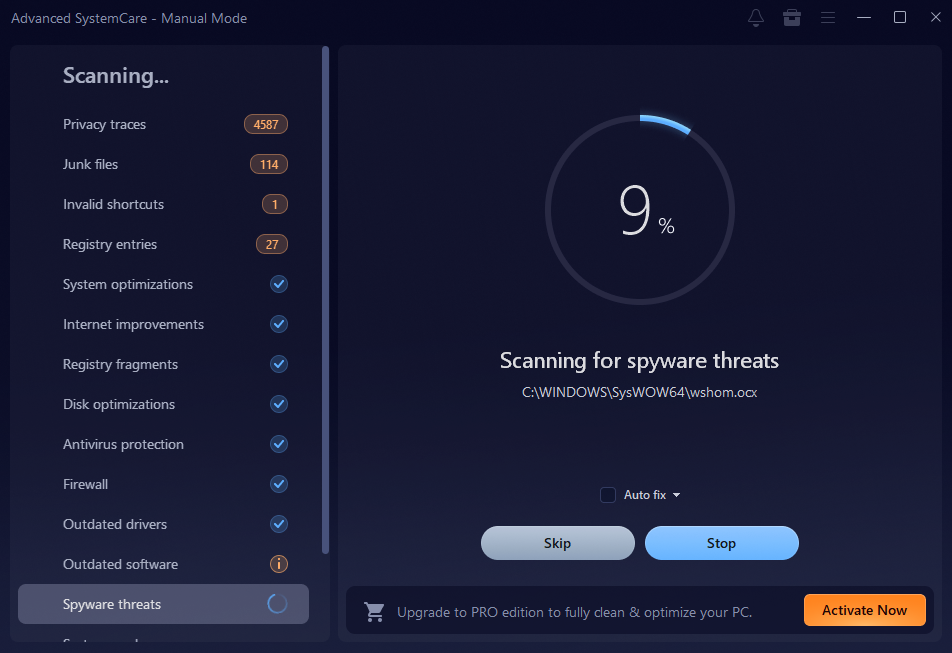
The first scan detected several categories of issues: Junk files, Registry problems, Privacy traces, Startup optimization opportunities, Security vulnerabilities. I ran the recommended cleanup and noticed an immediate difference in startup speed. The system felt lighter, especially when opening browsers and switching between applications.
Of course, initial improvements are common with almost any cleanup tool. The real question was whether those improvements would last after months of regular use.
Startup Optimization Made a Bigger Difference Than Expected
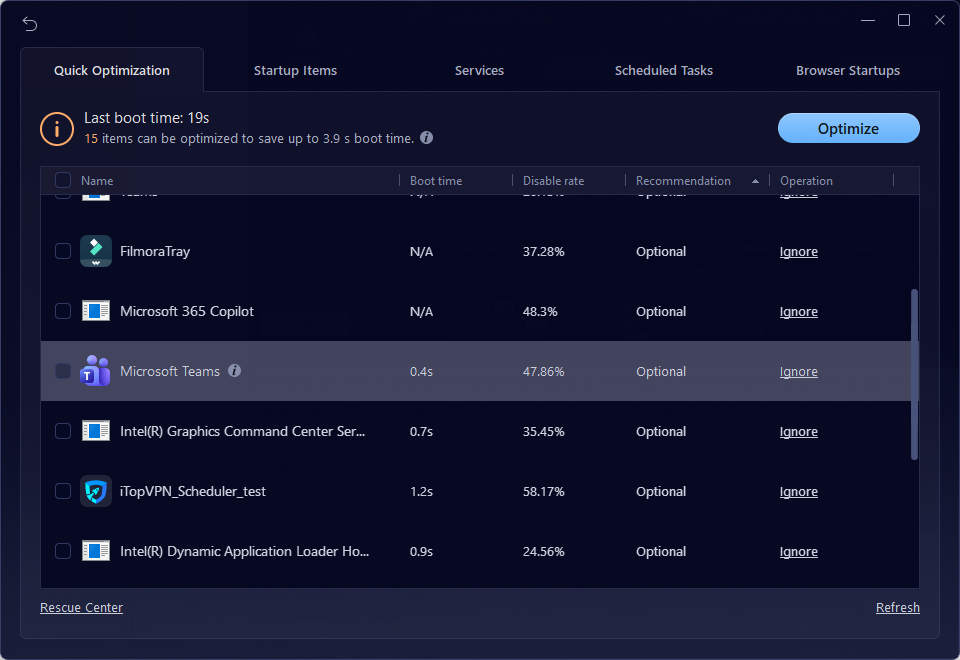
One feature I initially ignored turned out to be one of the most valuable parts of the software: startup management. Like many users, I had accumulated dozens of apps silently launching when Windows started. Some were obvious, while others were hidden background utilities I rarely used.
This PC cleaner identified unnecessary startup items and helped me disable them safely. After trimming down the startup list, my laptop booted significantly faster.
What I liked most was that the recommendations felt practical rather than aggressive. The software didn’t blindly disable everything. Instead, it categorized startup programs by impact level, making it easier to decide what should stay active. That balance made the experience feel less risky compared to manually editing startup settings myself.
Did It Actually Make the PC Faster?
This is probably the most important question.
In my experience, no PC cleaner can magically transform old hardware into a high-end machine. Anyone promising that is exaggerating. However, what Advanced SystemCare did accomplish was maintaining consistent performance over time. That distinction matters.
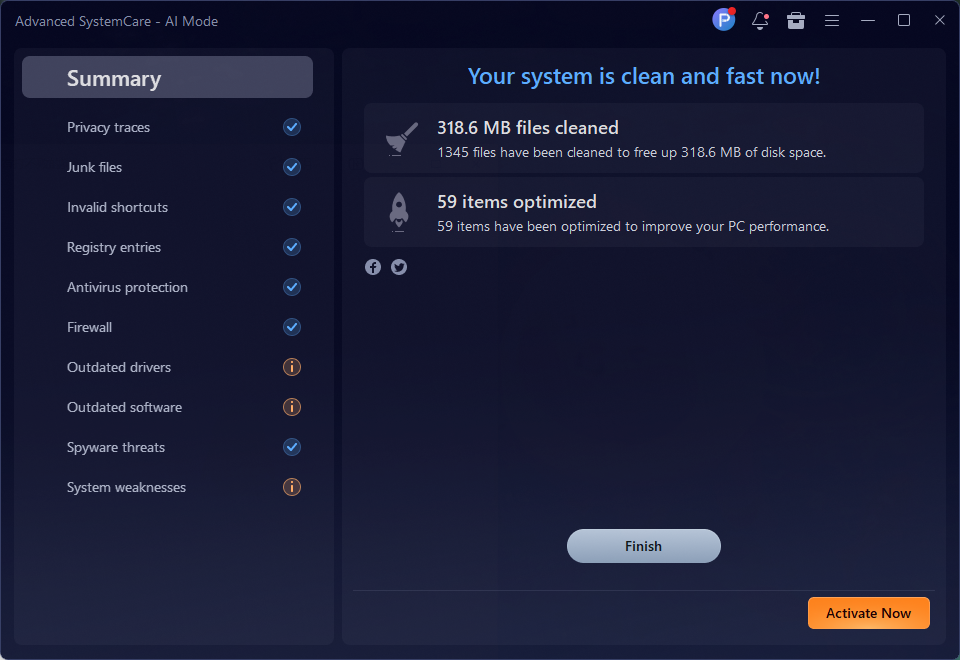
Instead of experiencing the usual gradual decline in responsiveness, my PC stayed relatively stable throughout the six months. Programs loaded faster than before, background clutter stayed under control, and overall system responsiveness improved.
I especially noticed the difference while multitasking. Running multiple browser tabs, office apps, and media simultaneously caused fewer slowdowns compared to before I started using the software. Gaming performance didn’t dramatically increase, but system stability during gaming sessions improved slightly because fewer background tasks were competing for resources.
Features I Actually Used in Daily Life
One thing I truly appreciated about the software was that I didn’t need to utilize every single feature to find immense value in it; instead, a select few tools naturally became part of my routine while others were left untouched. At the heart of my experience was the Junk File Cleanup, which remained the core reason I kept using the program because it consistently purged deep, unnecessary clutter that Windows completely ignored. I paired this with the Privacy Sweep to regularly clear out browsing traces and temporary data without the hassle of juggling multiple separate utilities, all while relying on Automatic Maintenance to handle these tasks in the background, saving me time since I never had to remember cleanup schedules manually.
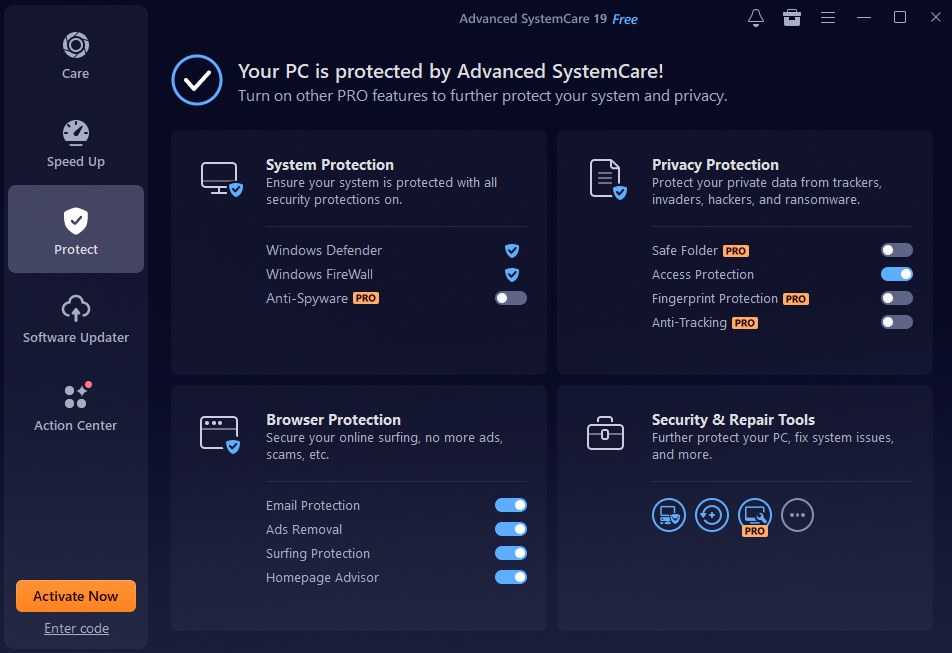
Beyond routine cleaning, the software drastically improved my system’s responsiveness through its targeted speed and tracking tools. The Startup Optimization feature was easily the single biggest contributor to faster boot performance, noticeably cutting down my wait time when powering on the PC. Additionally, the lightweight Performance Monitor became a staple widget on my screen, making it incredibly convenient to check active CPU and RAM usage at a glance without the constant disruption of opening the native Task Manager.
What I Didn’t Like
The experience wasn’t perfect. One downside was the occasional promotional pop-ups encouraging upgrades or additional features. They weren’t overwhelming, but they could become slightly annoying over time. I also noticed that some advanced features felt more useful for beginner users than experienced ones. If you already know how to manually optimize Windows, not every tool will feel essential.
Is a Windows Cleaner Really Necessary?
Before this test, I honestly believed most optimization software was unnecessary. After six months, my opinion became more balanced. Modern Windows systems are better at self-management than older versions, but they still accumulate clutter over time. Temporary files, registry leftovers, unnecessary startup tasks, and browser junk all contribute to gradual slowdowns.
Could I manually clean everything myself? Probably. Would I realistically maintain that process consistently every week? Definitely not. That’s where a dedicated Windows cleaner becomes useful. Automation matters. Having one program regularly monitor, clean, and optimize the system helps maintain long-term performance without constant manual maintenance.
Final Verdict After Six Months
After using Advanced SystemCare for half a year, I can say it genuinely helped maintain my PC’s performance better than I expected. It did something more realistic and arguably more valuable: it kept my system from gradually becoming frustrating to use.
The software handled routine maintenance tasks automatically, reduced unnecessary clutter, improved startup performance, and helped my laptop stay responsive throughout daily use. For users who struggle with slowdowns, cluttered systems, or long boot times, I think Advanced SystemCare works well as a practical PC cleaner and maintenance tool.
What impressed me most wasn’t a single dramatic speed boost. It was the consistency. Six months later, my PC still feels smoother, cleaner, and easier to use than it normally would after that amount of time.